
-
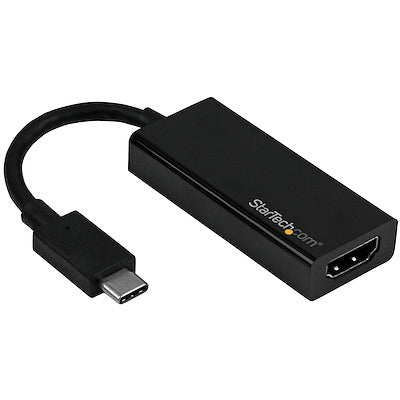
StarTech Adapter USB-C Male to HDMI Female 4K 60Hz - Black
Regular price $37.99 CADRegular price -
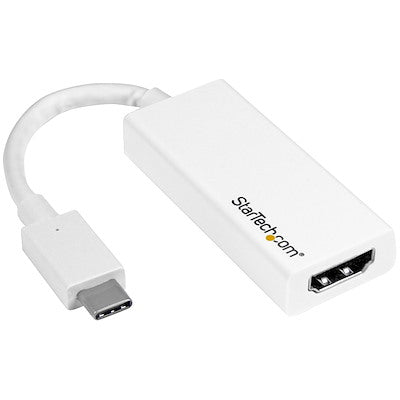
StarTech Adapter USB-C Male to HDMI Female 4K 30Hz Thunderbolt 3 Compatible - White
Regular price $34.99 CADRegular price -
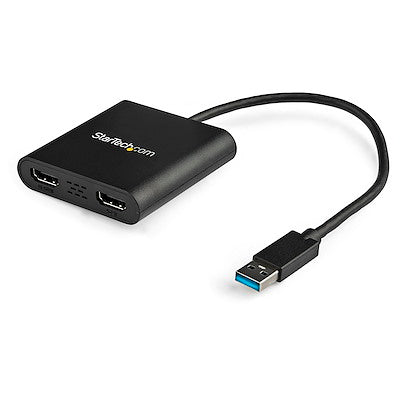
StarTech Adapter USB-A 3.0 to Dual HDMI PC - Black
Regular price $71.99 CADRegular price -
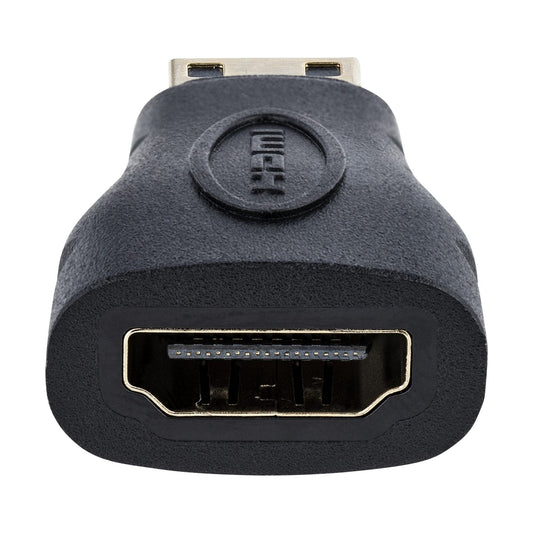
StarTech Adapter Mini HDMI Male to HDMI Female 4K High Speed Gold Plated - Black
Regular price $17.99 CADRegular price




Which HDMI adapter do I need?
Look at the video port on your laptop or device, then match it to the adapter.
- USB-C / Thunderbolt: most new laptops, MacBooks, iPads and many Android phones. Use a USB-C to HDMI adapter. Choose one with power delivery pass-through if you need to charge while connected.
- DisplayPort: common on desktop PCs and graphics cards. Use a DisplayPort to HDMI adapter.
- Mini DisplayPort: older MacBooks and Surface devices. Use a Mini DisplayPort to HDMI adapter.
- HDMI to VGA: for connecting a newer laptop to an older projector or monitor.
- Two monitors: dual-HDMI adapters (USB-C or USB-A) drive two screens from one port.
4K and 8K: what to look for
For a 4K monitor or TV, choose an adapter that supports 4K at 60Hz. 4K at 30Hz works for presentations and video but feels choppy for everyday desktop use. For 8K TVs, gaming consoles and 120Hz gaming, use an HDMI 2.1 (48Gbps) Ultra High Speed cable.
HDMI adapter FAQ
Why doesn't my USB-C to HDMI adapter work?
Your laptop's USB-C port must support video output (DisplayPort Alt Mode or Thunderbolt). Look for a small DisplayPort or lightning-bolt icon beside the port, or check your laptop's specs.
Do you sell long HDMI cables?
Yes. Xtech HDMI cables come in 6ft, 10ft, 15ft, 25ft and 50ft lengths.
Can I connect two monitors to one laptop?
Yes. Use a dual-HDMI adapter such as the Adesso USB-C to Dual HDMI, or the StarTech USB-A 3.0 to Dual HDMI adapter for laptops without video-capable USB-C.