
-
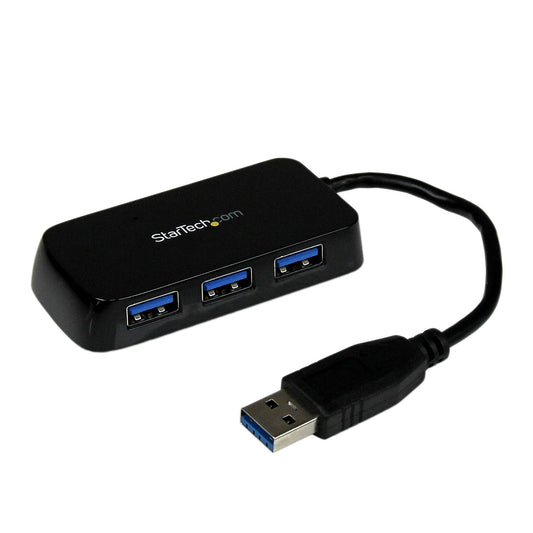
StarTech Hub 4 Port USB-A 3.0 with Individual On/Off Port Switches - Black
Regular price $52.99 CADRegular price -
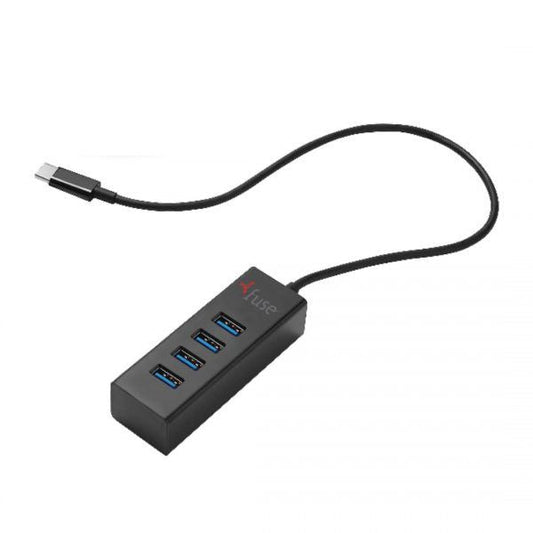
Fuse Hub 4 Port USB-C 3.1 to 4 USB-A Ports 3.0
Regular price $19.99 CADRegular price -
Alogic Docking Station USB-C Triple Monitor 3x DiplayPort 4K Ultra HD with 100W Power Delivery Prime MX3 with 135W Power Adapter & USB-C to USB-A Cable - Space Grey
Regular price $333.99 CADRegular price -
Hyper Docking Station USB-C Universal HyperDrive GEN2 6 Port 100watt Power Delivery 4K Video - Silver
Regular price $49.88 CADRegular price$88.88 CADSale price $49.88 CADSale -
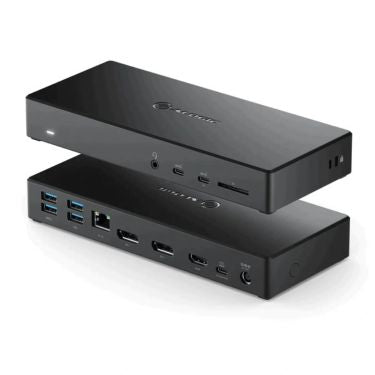
Alogic Docking Station USB-C Triple Monitor 2x DisplayPort 1x HDMI 4k Ultra HD 100W Power Delivery MA3 - Black
Regular price $249.99 CADRegular price -
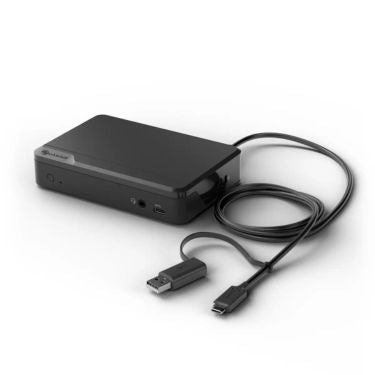
Alogic Docking Station USB-C or USB-A Dual Monitor 2xHDMI 1080p 1x USB-C 4x USB-A RJ45 - Black
Regular price $209.99 CADRegular price -
Alogic Docking Station USB-C or USB-A Dual Display 4K 7 Ports 2 HDMI Pass Through Charging 100W
Regular price $299.99 CADRegular price -
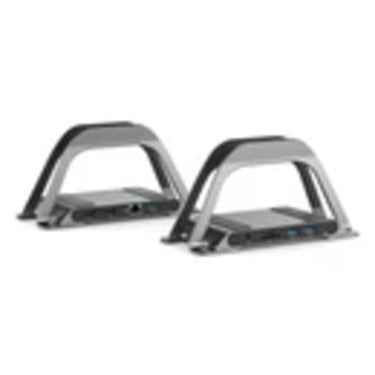
Alogic Docking Station USB-C Dual Monitor with Stand 4K 10-in-1 100W Power Delivery 2x HDMI Bolt Plus - Space Grey
Regular price $166.99 CADRegular price -
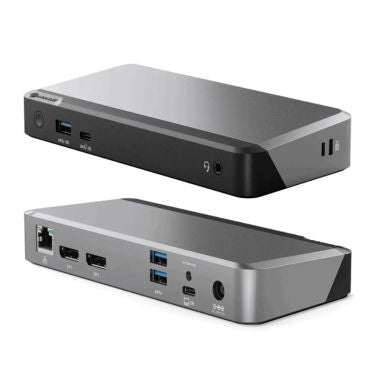
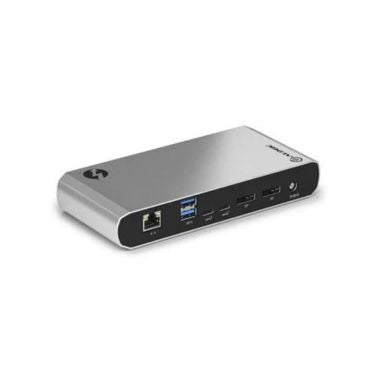
Alogic Docking Station USB-C Dual Monitor with 65W Power Delivery 2x DisplayPort 4k Ultra HD MX2 - Space Grey
Regular price $279.99 CADRegular price -
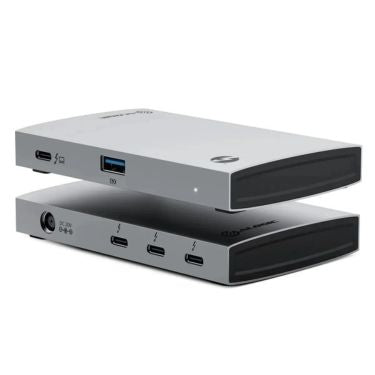
Alogic Docking Station USB-C Dual Monitor Thunderbolt 4 3x 4K Ultra HD 60Hz 60W Power Delivery Fast Data 40Gbps Blaze - Space Grey
Regular price $244.99 CADRegular price -
Alogic Docking Station USB-C Dual Monitor Thunderbolt 3 2x DisplayPort 4K Ultra HD 60Hz 60W Power Delivery - Space Grey
Regular price $338.99 CADRegular price -
Alogic Docking Station USB-C Dual Monitor 2x DisplayPort 4K Ultra HD 60Hz 85W Power Pass Through MX2 Lite - Space Grey
Regular price $128.99 CADRegular price -
Alogic Docking Station USB-C 7-in-1 100W Power Delivery 4k Ultra 60Hz HD Support Gen 2 Aluminum Body Ultra - Space Grey
Regular price $114.99 CADRegular price -
Alogic Docking Station USB-C 6-in-1 100W Power Delivery 4k Ultra HD 60Hz Support Gen 2 Aluminum Body Ultra - Space Grey
Regular price $64.99 CADRegular price -
Alogic Docking Station USB-C 10-in-1 Super Dock Dual Monitor 4K Ultra HD 60Hz 2x 4K HDMI Magnetic Connectors Power Delivery 100W - Space Grey
Regular price $219.99 CADRegular price -
StarTech Docking Station Triple Monitor USB-C HDMI & 4K DisplayPort - 60w Power Delivery - PC/Mac/Chrome - Black
Regular price $206.99 CADRegular price -
StarTech Docking Station Travel USB-C 4K HDMI or 1080p VGA RJ45 Gigabit Ethernet - Black & Silver
Regular price $81.99 CADRegular price -
StarTech Docking Station Portable Travel USB-C 4K HDMI or 1080p VGA - 3x USB 3.0 Hub, SD, GbE, Audio, 100W PD Pass-Through PC/Mac/Android/Chrome - Grey
Regular price $155.99 CADRegular price -
StarTech Docking Station Dual Monitor USB-A & USB-C HDMI & DisplayPort - PC/Mac - Black & Silver
Regular price $219.99 CADRegular price -
StarTech Docking Station Dual Monitor USB-A 3.0 HDMI & 4K DisplayPort - Gigabit - Fast Charge - PC/Mac/Chrome - Black
Regular price $159.99 CADRegular price -
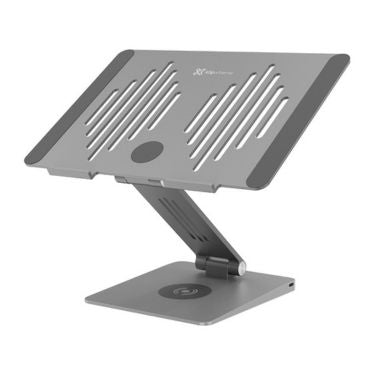
Klipxtreme Laptop Stand (Up to 15.6in) Docking Station 9-in-1 with Wireless Fast Charging Pad USB-C 100W PD 4k HDMI Aluminum Alloy - Space Grey
Regular price $116.99 CADRegular price -

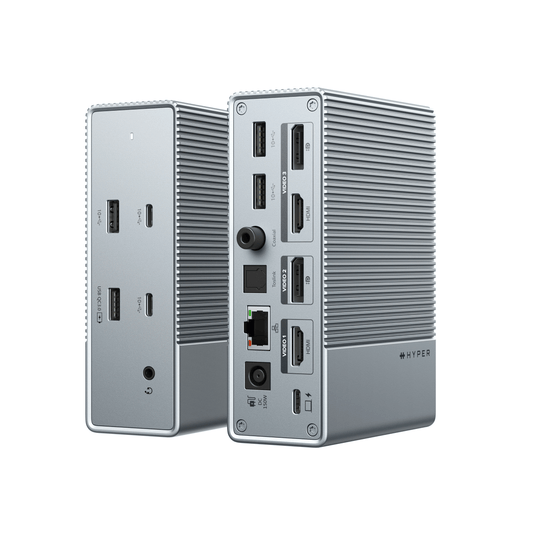
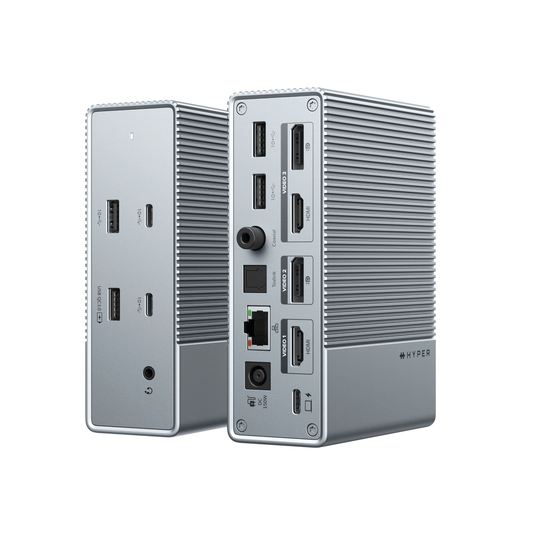
Hyper Docking Station USB-C Universal HyperDrive GEN2 14 Port Thunderbolt 3 8K & 4K Video - Silver
Regular price $179.88 CADRegular price$326.98 CADSale price $179.88 CADSale -
Hyper Docking Station USB-C Universal HyperDrive 14 Port Dual or Triple Monitor Support - Chromebook Certified - Silver
Regular price $319.99 CADRegular price -
Hyper Docking Station USB-C MacBook Pro/Air 2020 HyperDrive PRO 8-in-2 High Speed - Silver
Regular price $48.88 CADRegular price$88.88 CADSale price $48.88 CADSale






















How to choose a docking station or hub
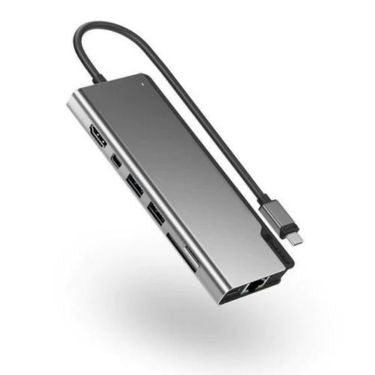
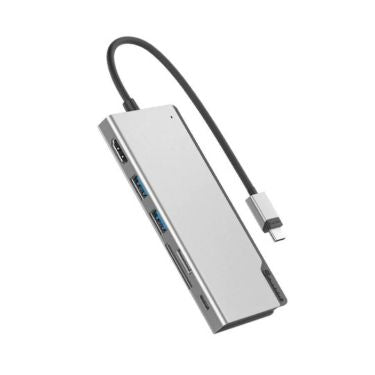
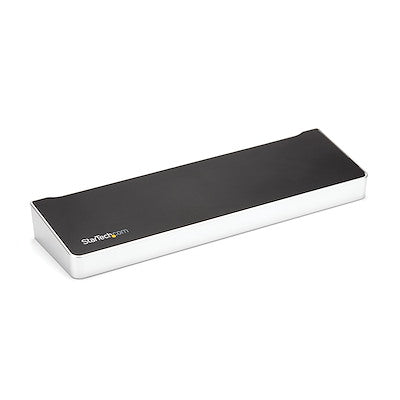
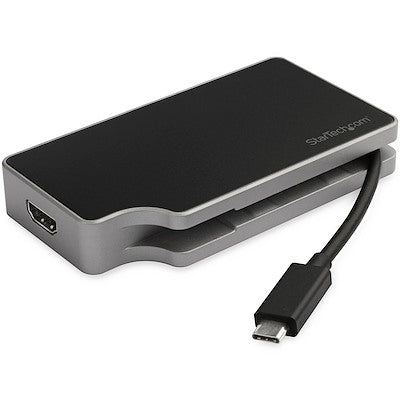
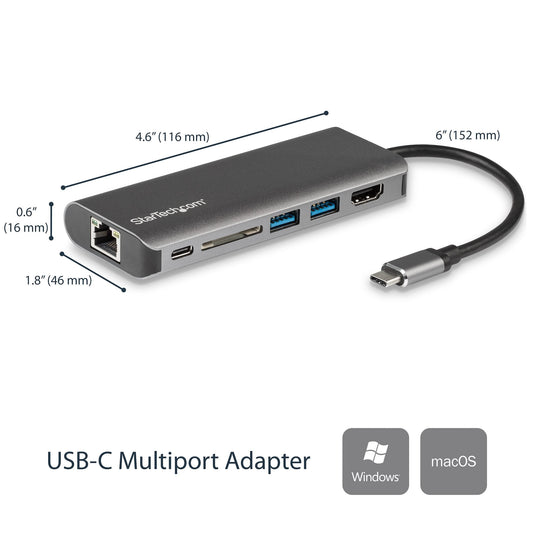
1. Hub or docking station? A hub adds a few ports, usually USB and one HDMI, and is ideal for travel. A docking station is a desk setup: multiple monitors, Ethernet, more USB ports and laptop charging through the same cable.
2. Count your monitors. We carry single-, dual- and triple-monitor docks. Check the video ports (HDMI or DisplayPort) and the resolution each supports, such as 4K at 60Hz.
3. Check your laptop's port. Your laptop's USB-C port must support video output (DisplayPort Alt Mode or Thunderbolt) to drive monitors through a dock. Thunderbolt 3 and 4 docks offer the most bandwidth for multiple high-resolution displays.
4. Match the charging power. Pick a dock whose Power Delivery (PD) output, up to 100W, meets or exceeds your laptop charger's wattage.
5. Consider extras. Many docks add Gigabit Ethernet, SD card readers and audio. The StarTech KVM switch shares one keyboard, mouse and two monitors between two computers.
Docking station FAQ
Can a MacBook use two external monitors through a dock?
It depends on the chip. Base M1 and M2 MacBook Air and Pro models support only one external display over USB-C. Pro and Max chips, and newer models, support more. Check the dock's product page for macOS multi-monitor support.
Will a USB-C dock charge my laptop?
Yes, if the dock has Power Delivery and your laptop charges over USB-C. Make sure the dock's wattage is at least your laptop charger's wattage.
What does a hub's 100W pass-through mean?
You plug your laptop charger into the hub, and the hub passes that power through to the laptop while you use its other ports.